How to Extract Data from a PDF: 5 Methods, from Copy-Paste to API
Introduction
Have you ever needed to extract information from a PDF and ended up copying it line by line into a spreadsheet?
Maybe you need to copy a few paragraphs from a report, extract invoice details into Excel, collect candidate information from hundreds of resumes, or transfer data from PDF documents into your business software.
The challenge is that extracting data from a PDF is not always as simple as copying text. Some PDFs contain selectable text, while others are scanned images. Tables, handwritten entries and inconsistent document formats can make the process even more complicated.
The good news? There are several ways to extract data from a PDF, depending on how much information you need, how frequently you do it, and where the extracted data needs to go.
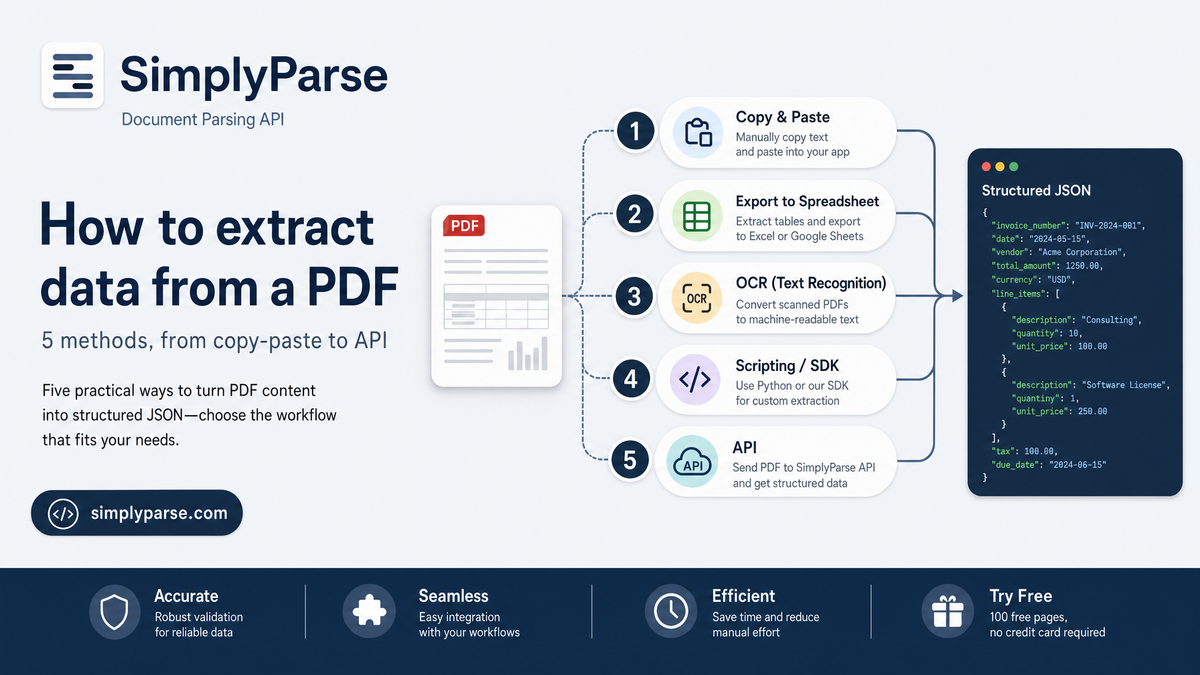
In this guide, we will explore five methods to extract data from a PDF, starting with the simplest and moving towards fully automated document processing.
Quick Comparison: Which PDF Extraction Method Should You Use?
| Method | Best For | Technical Skills | Automation |
|---|---|---|---|
| Copy and paste | A few lines or paragraphs | None | Manual |
| Online PDF converters | Occasional PDF-to-Excel or Word conversion | None | Limited |
| OCR tools | Scanned PDFs and image-based documents | None to basic | Partial |
| Python libraries | Custom extraction workflows | Programming required | High, with development |
| PDF parsing APIs | Extracting specific fields and sending data to other systems | Basic integration skills | High |
The simplest rule: If you need information from one PDF, a manual method may be enough. If you need to extract specific fields from hundreds or thousands of documents regularly, an automated extraction workflow is usually a better choice.
Method 1: Copy and Paste Data from a PDF
The easiest way to extract data from a PDF is to select the text and copy it into another application.
This method works well when you only need a small amount of information from a document.
How to Extract Data Using Copy-Paste
- Open the PDF in your browser or a PDF reader.
- Select the text you want to extract.
- Copy the selected text.
- Paste it into Word, Excel, Google Sheets or another application.
- Review the formatting and correct any errors.
For example, suppose you receive an invoice and need to copy its invoice number, date and total amount into a spreadsheet. You can select these details and paste them into the appropriate cells.
Advantages
- No additional software is required.
- It is quick for short documents.
- You can choose exactly which information to copy.
Limitations
Copy-paste becomes inconvenient when you need to process multiple documents. Formatting may also break when you copy tables, multiple columns or line items.
This method may not work at all if the PDF contains scanned images rather than selectable text.
Best for: Occasional tasks involving a few documents and a small amount of information.
Method 2: Use an Online PDF Converter
If you need to extract larger amounts of information, an online PDF converter can help you convert the document into another format.
Depending on the tool, you may be able to convert a PDF into Word, Excel, CSV or plain text.
For example, converting a table-heavy PDF into Excel can make it easier to sort information, calculate totals and analyse records.
How to Extract Data Using an Online Converter
- Choose a PDF conversion tool.
- Upload your PDF.
- Select the desired output format, such as Excel or Word.
- Download the converted file.
- Check whether the information has been transferred correctly.
Advantages
- Easy to use without programming.
- Useful for converting entire documents.
- Can preserve some formatting and table structures.
Limitations
A converted file does not necessarily contain the information in the structure you need.
For example, converting an invoice into Excel might reproduce the entire invoice layout, including headings, addresses, line items and totals. You may still need to identify the invoice number, supplier name, date and total amount manually.
You should also consider privacy before uploading sensitive business documents to third-party websites. Check the provider's data-handling policies and your organisation's requirements.
Best for: Occasional document conversion when you need the content in another file format.
Method 3: Use OCR to Extract Data from Scanned PDFs
What if you cannot select or copy text from your PDF?
The document may be a scan or a photograph saved as a PDF. In this case, the text is stored as an image rather than as selectable characters.
This is where OCR (Optical Character Recognition) comes in.
OCR technology identifies text within images and converts it into machine-readable text.
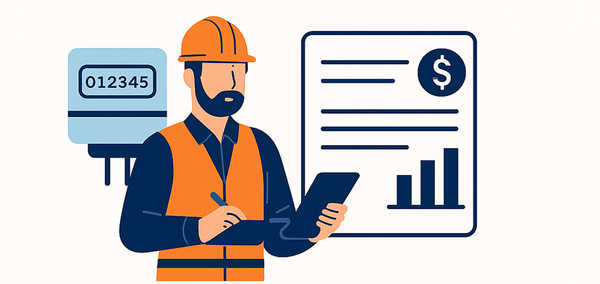
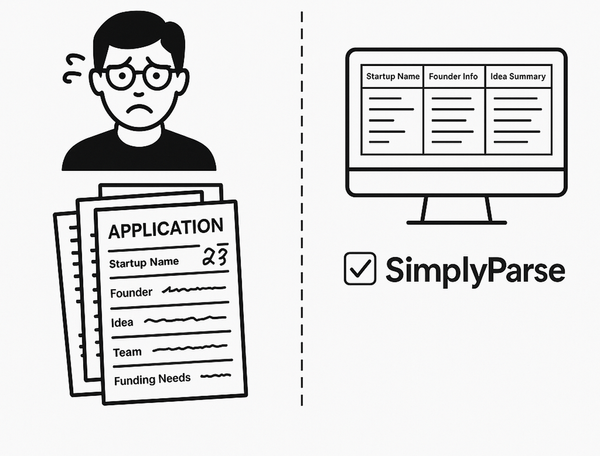
For example, a business might receive scanned invoices, handwritten application forms, printed delivery challans or older paper records. OCR can help turn these documents into searchable, readable digital content.
How OCR Works
- Upload or scan the document.
- The OCR tool examines the page images.
- It identifies letters, numbers and words.
- It converts the recognised text into digital text.
- You review the output and correct recognition errors if needed.
Advantages
- Works with scanned documents and images.
- Makes image-based text searchable.
- Reduces the need for manual transcription.
- Can support digitisation of paper records.
Limitations
OCR extracts recognised text, but that does not automatically mean the information is correctly organised.
Imagine a scanned invoice containing:
- Supplier name
- Invoice number
- Invoice date
- Taxable amount
- GST
- Total amount
An OCR tool might recognise all these values, but you may still need an additional step to associate each value with the correct field.
Accuracy can also be affected by poor image quality, handwriting, unusual fonts, skewed pages and complex layouts.
Best for: Scanned PDFs, image-based documents and paper records that need to become machine-readable.
Method 4: Extract PDF Data Using Python
If you have programming experience, Python libraries provide another way to extract data from PDFs.
This approach is particularly useful when you want to build a custom workflow, process multiple files in batches, or control exactly how the extracted information is handled.
Different libraries are suited to different tasks:
- PyMuPDF: Extracting text and working with PDF page content.
- pdfplumber: Extracting text and working with table-like layouts.
- Camelot: Extracting tables from suitable text-based PDFs.
- Tesseract OCR: Recognising text in scanned pages when combined with an appropriate image-processing workflow.
The right library depends on the document format and the output you need. Scanned PDFs generally require OCR, while complex tables may need additional processing.
Example: Extract Text from a PDF Using Python
You can use PyMuPDF to extract text from a PDF that contains a readable text layer.
First, install the library:
pip install pymupdfThen run the following code:
import pymupdf

pdf_path = "invoice.pdf"

with pymupdf.open(pdf_path) as document:
    for page_number, page in enumerate(document, start=1):
        text = page.get_text("text")

        print(f"--- Page {page_number} ---")
        print(text)
This code opens the PDF, extracts the text from each page and prints it.
You can then extend the script to save the text to a file, process multiple PDFs or identify specific fields.
Advantages
- Gives developers greater control over extraction.
- Can process large batches of documents.
- Can be integrated into custom applications.
- Provides flexibility for specialised document formats.
Limitations
Extracting text is not the same as extracting structured business data.
If your goal is to obtain fields such as invoice_number, supplier_name, invoice_date and total_amount, you may need additional code to identify and organise those values.
A custom solution may also require separate handling for OCR, tables, different document layouts, validation, error recovery and ongoing maintenance.
Best for: Developers building custom PDF processing workflows who have the time and expertise to maintain them.
Method 5: Use a PDF Parsing API to Automate Data Extraction
If your business regularly receives PDFs and needs to transfer their information into another system, a PDF parsing API can simplify the process.
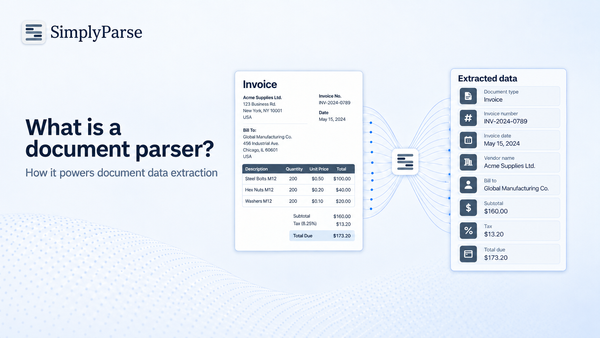
Instead of extracting text and then manually organising it, you define the fields you want and configure a parser to return the results in a structured format, such as JSON.
For example, consider a company that receives hundreds of invoices every day.
Its finance team needs to capture:
- Invoice number
- Invoice date
- Supplier name
- GST details
- Line items
- Subtotal and total amount
A PDF parsing API can extract these fields into a consistent structure that an application can process.
The application can then use the extracted data in an accounting system, database, ERP or another business workflow.
How PDF Data Extraction Through an API Works
Step 1: Define the Fields
Choose the information you want to extract. For an invoice, this could include the invoice number, supplier details, date, line items and total amount.
Step 2: Upload or Send the PDF
Your application sends the document to the parser through an API request.
Step 3: Extract Structured Data
The parser identifies the relevant fields and returns the extracted values in a machine-readable format.
Step 4: Validate the Results
Check whether required fields are present, dates and amounts follow expected formats, and the extracted information meets your business rules.
Step 5: Send the Data to Your System
Use the API response or a webhook to pass the results into your application or trigger the next step in your workflow.
Example: Extract Invoice Data as JSON
A structured response might look like this:
{
  "invoice_number": "INV-2026-084",
  "invoice_date": "2026-09-12",
  "supplier_name": "Acme Studio",
  "subtotal": 3600,
  "tax_amount": 360,
  "total_amount": 3960
}
Instead of receiving an unstructured block of text, your application receives clearly named fields.
This makes the extracted information easier to store, search, validate and transfer to other systems.
Note: This is an illustrative JSON example. Actual field names and output depend on your parser configuration.
How SimplyParse Helps Automate PDF Data Extraction
SimplyParse is a document parsing platform that helps businesses extract information from PDFs, scanned documents, images and other supported file formats, then receive the data in a structured format.
Rather than building every part of a document extraction workflow from scratch, you can configure a parser around the information your business needs.
With SimplyParse, you can:
- Extract specific fields: Choose the fields, data types, nested objects and lists you want in the output.
- Start with ready-made parsers: Use templates for invoices, receipts, resumes, GST tax invoices and delivery challans.
- Create custom parsers: Define your own fields and rules for other document types.
- Validate extracted information: Configure required fields, format checks, number ranges and lookup rules.
- Integrate through an API: Send documents from your application and receive structured JSON responses.
- Automate asynchronous processing: Queue documents for processing and retrieve results through polling or webhooks.
- Export results: Download parsed records as an Excel workbook.
For example, a recruitment agency can extract candidate details and work experience from resumes. A finance team can capture invoice numbers, tax amounts and totals. A logistics company can turn delivery challans into structured records.
The goal is not simply to extract text from a PDF. It is to make the information usable in the next step of your business process.
How to Get Started with SimplyParse
You can try SimplyParse without committing to a paid plan.
- Visit SimplyParse.
- Choose a ready-made parser or create your own.
- Configure the fields you need and upload a sample document.
- Review the extracted JSON and validation results.
- Generate an API token and connect the parser to your application when you're ready to automate the workflow.
SimplyParse currently offers 100 free pages to get started, with no credit card required. Check the pricing page for current rates and plan details.
Best for: Businesses and developers who need repeatable, structured PDF data extraction integrated into existing workflows.
Which Method Is Best for Your Business?
The best method depends on what you need to achieve.
| Your Requirement | Recommended Method |
|---|---|
| Copy a paragraph from one PDF | Copy and paste |
| Convert a document into Excel | Online PDF converter |
| Extract text from scanned documents | OCR |
| Build a custom PDF processing script | Python libraries |
| Extract specific fields from recurring documents | PDF parsing API |
| Validate extracted fields before processing | PDF parsing API with validation rules |
| Automatically send extracted data to another system | API and webhook integration |
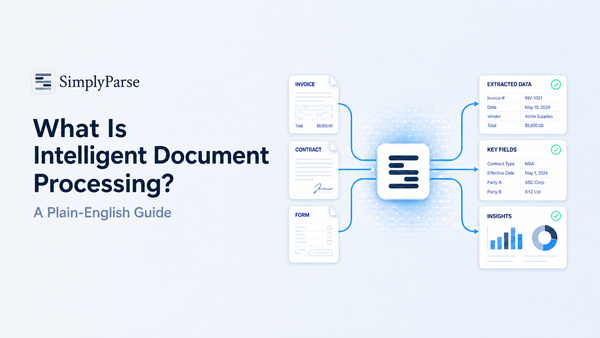
One important distinction is worth remembering: text extraction, data extraction and workflow automation are three different things.
Text extraction gives you readable content. Data extraction identifies and organises the information you need. Workflow automation sends that information to the next system or process with minimal manual intervention.
If you only need readable text, a simple tool may be enough. If you need consistent business records, consider a solution that supports structured extraction and validation. If you need a fully connected process, look for API and webhook support.
Common Mistakes to Avoid When Extracting Data from PDFs
Even with the right tool, a few mistakes can create problems downstream.
1. Treating Every PDF the Same Way
A digitally generated PDF and a scanned document may require different extraction methods. Check whether the document contains selectable text before deciding which tool to use.
2. Assuming Extracted Text Is Accurate
OCR and document parsers can make mistakes, particularly with handwritten entries, low-quality scans, similar-looking characters and complex tables. Compare important values with the source document.
3. Ignoring Table Structure
Extracting every word from a PDF does not guarantee that rows, columns and line items remain correctly associated. If you need financial or operational data, verify the table structure and totals.
4. Skipping Validation
A field may be present but incorrect. For example, an invoice total could be extracted into the correct field but contain an incorrect digit.
Use appropriate validation rules and human review for exceptions or high-impact transactions.
5. Automating Extraction Without Planning the Next Step
Before choosing a tool, decide where the extracted data needs to go. Will you store it in Excel, add it to a database, update an accounting application or send it to another system through an API?
Your destination determines the output format and integration capabilities you need.
6. Overlooking Document Security
Business documents can contain personal information, financial records and confidential data. Review storage, retention, access controls and processing arrangements before uploading documents to any third-party service.
SimplyParse's data and security page explains how its hosted service handles document storage, processing and model training.
Frequently Asked Questions
How Do I Extract Data from a PDF for Free?
You can copy and paste selectable text, use a suitable PDF converter, or run a Python library locally. For structured document parsing, SimplyParse offers 100 free pages without requiring a credit card to get started.
How Do I Extract Data from a Scanned PDF?
Use OCR to convert text within scanned page images into machine-readable text. If you also need specific fields, such as invoice numbers or candidate details, use a document parser that supports structured extraction.
How Do I Extract Tables from a PDF into Excel?
For occasional tasks, try a PDF-to-Excel converter. For text-based PDFs, Python libraries such as Camelot or pdfplumber may help. Always check row alignment, column headings and numeric values. Scanned tables may require OCR.
Can I Automatically Extract Data from Multiple PDFs?
Yes. You can write a batch-processing script or use a document parsing API. For recurring business workflows, an API with asynchronous processing and webhook support can help automate extraction and delivery of results.
Can I Extract Only Specific Fields from a PDF?
Yes. Some document parsing platforms let you define a schema containing only the fields you need. With SimplyParse, you can choose field names, data types, nested objects and lists, and configure validation rules for the output.
Can PDF Data Extraction Be Integrated into My Existing Software?
Yes. An API allows your application to send documents for processing and receive structured results. Depending on your workflow, you can use the response directly, poll for asynchronous results or receive them through a webhook.
Is Extracting Text from a PDF the Same as Extracting Structured Data?
No. Text extraction returns readable content. Structured data extraction identifies specific information and organises it into fields, records or objects. Structured output is generally more useful when you need to transfer information into business applications.
Conclusion: Move from Manual Extraction to Automation
There is no single method that works best for every PDF.
Copy-paste is useful for small tasks. Online converters help with occasional file conversions. OCR makes scanned documents readable, and Python provides flexibility for custom workflows.
But when your business repeatedly processes invoices, resumes, forms, delivery challans or other documents, manual extraction can become a bottleneck.
A PDF parsing API helps turn documents into structured data that your applications can use, while validation rules and integrations help reduce repetitive work.
If you want to see how this works with your own documents, try SimplyParse. Start with 100 free pages, configure the fields you need, review the results and explore how to connect PDF data extraction to your existing systems.